Bin khamis · بن خميس
Open catalog
Bin khamis Product Catalog · Desktop & Mobile

Find every product you need. Send your list in one tap.

Binkhamis International Trading Company has put its full range of sweets, food essentials and household products online. Browse by category, search by product name or barcode, pick what you need and send the list straight to your Bin khamis salesman — from your computer or your phone.

  • No sign-up, no app to install
  • English & العربية
  • Works on desktop & mobile
app.binkhamis.store
app.binkhamis.store
Sweets Division Search by name, code, brand or barcode EN | ع My list2
Our products108 products
AllConfectioneryBiscuits & CakesSnacks Mix & NutsBeverages
9:41
EN | ع
AllConfectioneryBiscuits
ProductsCategoriesMy list2
Step by step

How to order from the catalog in 8 easy steps

Each step shows exactly what you will see on a computer and on a phone. Follow along — the whole journey takes about a minute.

Desktop viewMobile view
01

Open the catalog on any device

Go to app.binkhamis.store on your computer, tablet or phone. There is nothing to install and no account to create — the full Bin khamis product range opens straight away in your browser.

  • Works in Chrome, Safari, Edge and every modern browser
  • Switch between English and العربية at the top of the page
  • The same catalog adapts to big screens and small screens
TipOn your phone, use “Add to Home Screen” to open the catalog like an app.

app.binkhamis.store
All divisions Search by name, code, brand or barcode EN | ع My list
Product Catalog | Binkhamis International Trading Company

Welcome to Binkhamis Store

For more than a decade, Bin Khamis has been supplying shops and businesses across Saudi Arabia. Browse our product range, select what you need, and send your enquiry directly to our sales team via WhatsApp.

Browse products
9:41
app.binkhamis.store
EN | ع
Product Catalog

Welcome to Binkhamis Store

ProductsCategoriesMy list
02

Pick the division you buy from

On your first visit, the catalog asks what you would like to browse: Sweets, Food, Cosmetics — or everything at once. Your choice is remembered, and you can switch at any time from the menu at the top.

SweetsConfectionery, biscuits, snacks FoodBeverages, staples, dairy, frozen CosmeticsPersonal care, household & more

app.binkhamis.store
All divisions Search by name, code, brand or barcode EN | ع My list
9:41
EN | ع
03

Browse by category

Every product sits in a clear category and sub-category — for example Confectionery → Chocolates. Pick one and the catalog shows only those products, with a live count.

Desktop

Use the category list on the left. Click a category to open its sub-categories, then click one.

Mobile

Tap Categories in the bottom bar, choose a category and sub-category, then tap Show.

app.binkhamis.store
Sweets Division Search by name, code, brand or barcode EN | ع My list
Confectionery Chocolates
Chocolates24 products
9:41
EN | ع
CategoriesSweets Division
Confectionery Biscuits & Cakes Snacks & Nuts
All ConfectioneryChocolatesChewing GumHard CandiesToffeesLollipops
Show 24 products
ProductsCategoriesMy list
04

Search by product name

Already know what you want? Type it in the search box. Results update as you type, and the search understands more than just the English name.

buenoEnglish name كيندرArabic name K01154Product code KinderBrand

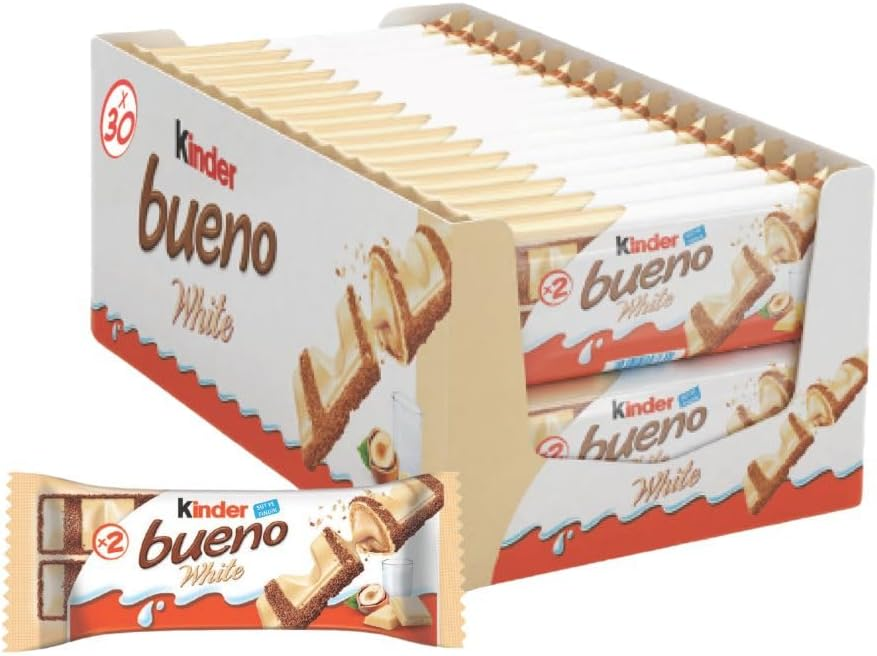
All four searches above find the same product: Kinder Bueno White.

app.binkhamis.store
Sweets Division bueno EN | ع My list
Our products1 of 108 products
Matches on English name Arabic name Product code Brand Barcode
Also try:galaxyloackerكابريسK02543
9:41
EN | ع
2 of 108 products
qwertyuiopasdfghjklsearch
05

Search by barcode

Have the product in your hand or on your shelf? Use its barcode. The matching product opens instantly, with the correct pack unit (piece, box or carton) already selected.

Mobile

Tap the barcode icon inside the search box, allow the camera, and point it at the barcode.

Desktop

Type the barcode number in the search box — or scan it with a USB barcode scanner — and press Enter.

Reads EAN-13, EAN-8, UPC-A, UPC-E, Code 128, Code 39, Code 93, ITF-14 and QR codes.

app.binkhamis.store
Sweets Division 08000500121467Enter EN | ع My list
USB scanner works too
9:41
✕Scan barcode
8 000500 121467

Point the camera at the product barcode

FoundKINDER BUENO WHITE T2
06

Choose the unit and quantity

Tap Send on any product card. A small window opens where you choose how you want to buy it and how many.

  1. Choose the unit — for example PCS, BOX(30) or CTN(120).
  2. Set the quantity with the + and − buttons.
  3. Press Add to list. The card now shows In list.
TipChanged your mind? Open the product again and press Update list.
app.binkhamis.store
Sweets Division Search by name, code, brand or barcode EN | ع My list1
9:41
EN | ع
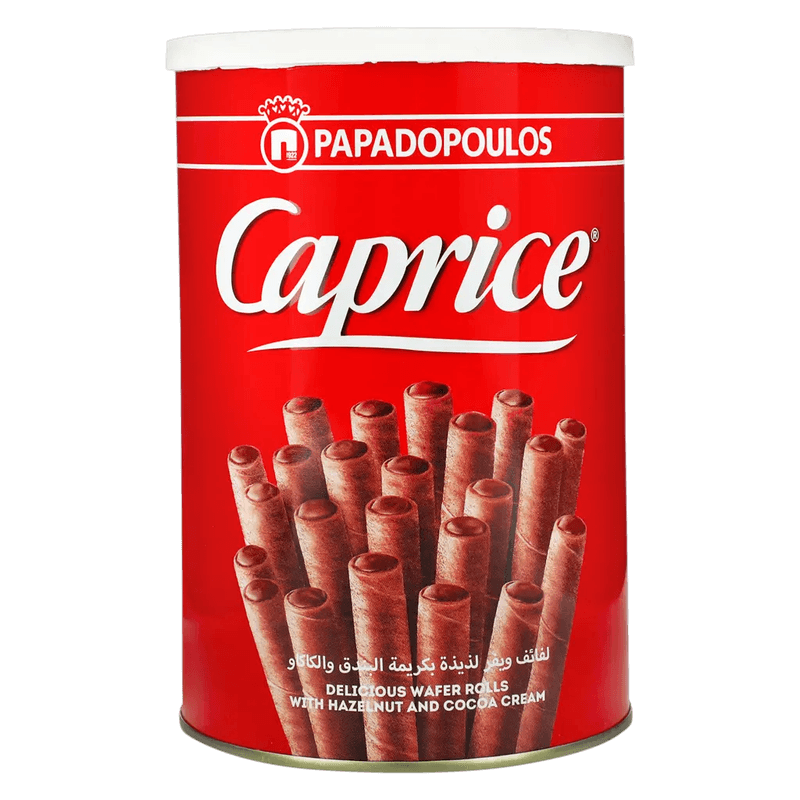
CAPRICE 6X400 GMكابريس كبير 6*400 جرامCode: K00588
CTN(6)PCS
3
Add to list
07

Review your list

Open My list to see everything you have selected in one place. Adjust quantities, remove what you don't need, or start again with Clear list.

  • The counter on My list shows how many products you picked
  • Your list is saved on your device — close the page and continue later
  • Add products from different categories into the same list
app.binkhamis.store
Sweets Division Search by name, code, brand or barcode EN | ع My list3
My list3 products · send them all to your salesman in one message
✕
Clear listCopy
9:41
EN | ع
My list3 products
ClearCopy
ProductsCategoriesMy list3

Send it to your salesman on WhatsApp

Press Send all on WhatsApp. One neat message is prepared for you with every product name, code, unit and quantity. Choose your Bin khamis salesman's chat and press send.

  1. WhatsApp opens with your list already written.
  2. Pick the chat of your Bin khamis salesman and send.
  3. Your salesman confirms your order and gets it ready for you.
TipPrefer another app? Tap Copy in My list and paste the message anywhere.
What your salesman receives

One clear message. Every detail included.

No typing, no spelling mistakes, no missed items. The catalog writes the message for you with the exact product codes, so your salesman can prepare your order quickly and correctly.

  • Product name in English and Arabic
  • Bin khamis product code for each item
  • Unit and quantity you selected
  • Sent in your language — English or Arabic
Desktop & Mobile

Designed for the screen you are using

The same products and the same list — laid out to feel natural on a big office screen or in the palm of your hand.

On desktop

For office and purchasing teams
  • Category list on the left with sub-categories and product counts
  • Wide product grid — see more products at once
  • Type a barcode or use a USB barcode scanner
  • My list opens as a side panel next to the products
  • Sends through WhatsApp Web or the WhatsApp desktop app

On mobile

For shop owners on the move
  • Bottom bar with Products, Categories and My list — one thumb is enough
  • Large product cards that are easy to tap
  • Scan barcodes straight from your shelf with the camera
  • My list slides up from the bottom of the screen
  • Opens the WhatsApp app directly to send your list
On both: Same products Name, code & barcode search English & العربية No login
Why customers love it

Buying from Bin khamis, made simple

Find products in seconds

Category, name, code or barcode — four quick routes to the product you need.

No login, no app

Open the website and start straight away. Nothing to download or remember.

English & Arabic

Every product shows both names, and the whole page switches to Arabic in one tap.

Your list is saved

Build your list during the day and send it when you are ready.

One message, no mistakes

Codes, units and quantities are written for you — your salesman gets exactly what you mean.

Personal service

Your own Bin khamis salesman takes care of your order from start to finish.

Questions

Frequently asked questions

Binko has the answers to the questions customers ask most.

Got a question? I've got the answer! Binko, the Bin khamis mascot, presenting the answers
Do I need an account or an app?

No. Just open app.binkhamis.store in your browser on any computer or phone. There is no sign-up and nothing to install.

Who receives my list?

When you press Send all on WhatsApp, WhatsApp opens with your list ready. You choose the chat of your usual Bin khamis salesman.

What if the camera can't read the barcode?

Type the barcode numbers into the search box and press Enter — the product opens the same way. USB barcode scanners also work in the search box.

Will my list disappear if I close the page?

No. Your list is saved in the browser on your device, so it will still be there when you come back on the same device.

Can I use the catalog in Arabic?

Yes. Tap العربية (or ع on mobile) at the top. The whole page switches to Arabic, right-to-left, and your WhatsApp message is written in Arabic too.

Browse. Select. Send. We'll get it ready.

Open the Bin khamis product catalog now on your computer or phone and send your first list to your salesman in under a minute.

Open the catalog app.binkhamis.store
QR code to open app.binkhamis.store
Scan to open on your phone Point your phone camera at the code and the catalog opens instantly. Browse at your desk, order on the go.
Binko pointing to the catalog button while holding the catalog on a phoneNeed help? Your salesman is one message away!